
Running an AI assistant on your own server opens up interesting possibilities. Instead of interacting with AI exclusively through a browser, you can connect it to messaging applications, local development tools, and automated workflows.
In this tutorial, I’ll explain how I deployed Nous Research Hermes Agent using Docker Compose on Ubuntu, configured authentication through OpenAI Codex, enabled its web dashboard, and connected it to my existing Signal account.
The final result is a self-hosted AI agent that I can communicate with directly from my phone using Signal’s Note to Self conversation.
I’ll also cover the problems I encountered during installation and how I resolved them.
1. What Is Hermes Agent?
Hermes Agent is an open-source AI agent developed by Nous Research.
Unlike a conventional chatbot, an agent can use tools and execute multi-step tasks. Depending on its configuration and permissions, it can interact with the filesystem, run shell commands, work with source code, and use external services.
For this installation, I used:
- Ubuntu Linux as the host operating system.
- Docker and Docker Compose to run the services.
- Hermes Agent as the AI agent and messaging gateway.
- OpenAI Codex authentication to access an AI model.
- Hermes Dashboard for browser-based administration.
- signal-cli to integrate with Signal Messenger.
The main advantage is that Hermes runs continuously on my Ubuntu machine while I can communicate with it remotely through Signal.
2. Solution Architecture
The setup consists of two Docker containers running on the same Docker Compose network.
 Android Phone
                  Signal Messenger
                         |
                         | Encrypted Signal messages
                         |
                  Signal Network
                         |
                         v
              +----------------------+
              | signal-cli           |
              | Native HTTP daemon   |
              | Port 8080            |
              +----------------------+
                         |
                         | Docker internal network
                         |
                         v
              +----------------------+
              | Hermes Agent         |
              | Gateway + AI Tools   |
              | Dashboard: 9119      |
              +----------------------+
                         |
                         v
                 OpenAI Codex
                 AI model access
The signal-cli service handles Signal communication, while Hermes processes incoming messages and generates responses.
The Signal HTTP port is not published to the host network. Only the Hermes Dashboard is exposed on the configured host interface.
3. Prerequisites
Before starting, make sure you have:
- Ubuntu with Docker Engine and Docker Compose installed.
- A working Signal account on your phone.
- Access to OpenAI Codex authentication.
- A terminal with permission to run Docker commands.
- A persistent directory for storing Hermes configuration.
Verify Docker:
docker --version
docker compose version
Create a working directory:
mkdir -p ~/PROJECTS/hermes-docker
cd ~/PROJECTS/hermes-docker
4. Configure Docker Compose
The deployment uses two services: hermes and signal.
The following is a consolidated example based on my working installation. The exact Hermes startup settings should be checked against the image version being deployed.
Create compose.yaml:
services:
  hermes:
    image: nousresearch/hermes-agent:latest
    container_name: hermes
    restart: unless-stopped
    stdin_open: true
    tty: true
    environment:
      HERMES_DASHBOARD: "1"
    volumes:
      - ./data:/opt/data
    ports:
      - "192.168.1.104:9119:9119"

  signal:
    image: registry.gitlab.com/packaging/signal-cli/signal-cli-native:latest
    container_name: hermes-signal
    restart: unless-stopped
    command:
      - daemon
      - --http
      - 0.0.0.0:8080
    volumes:
      - ./signal-native-data:/var/lib/signal-cli
    tmpfs:
      - /tmp:exec
Replace 192.168.1.104 with your Ubuntu server’s LAN address.
The data directory stores Hermes configuration, while signal-native-data stores Signal’s account data.
For production deployments, consider pinning tested image versions rather than using latest.
Start Hermes:
docker compose up -d hermes
Check its status:
docker compose ps
docker compose logs --tail=50 hermes
5. Configure OpenAI Codex Authentication
Hermes needs access to an AI model.
In my installation, I used the OpenAI Codex authentication flow associated with my ChatGPT account.
Start an interactive Hermes configuration session:
docker compose run --rm --no-deps hermes
Follow the available authentication/setup flow for the installed Hermes version and select the OpenAI Codex provider.
The device authentication process may require opening a URL in a browser and authorizing the application.
Once authentication is complete, test the agent:
docker compose run --rm --no-deps hermes \
  chat -q "Reply with: Hermes is online."
In my installation, Hermes returned:
Hermes is online.
This confirmed that the agent could successfully authenticate and generate a response.
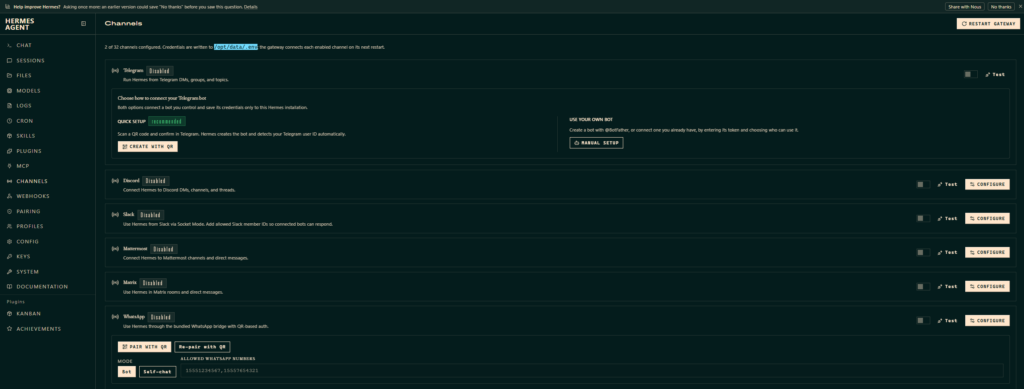
6. Enable the Hermes Dashboard
Hermes provides a web dashboard for managing configuration and messaging channels.
In Docker Compose, enable it with:
environment:
  HERMES_DASHBOARD: "1"
The dashboard uses port 9119.
However, I encountered an issue: Hermes refused to listen on 0.0.0.0 without an authentication provider.
The solution was to configure dashboard Basic Authentication in Hermes.
The configuration contains a dashboard section similar to:
dashboard:
  basic_auth:
    username: YOUR_USERNAME
    password_hash: "scrypt$..."
Use the Hermes configuration commands to generate and store a supported password hash. Do not store a plaintext password in the article or expose the hash publicly.
An important troubleshooting detail: my initial Compose configuration also contained dashboard authentication environment variables. These conflicted with the authentication configuration stored in Hermes.
Removing the conflicting variables and recreating the container resolved the problem.
docker compose up -d --force-recreate hermes
I could then open:
http://192.168.1.104:9119
and access the dashboard.
For access over SSH without exposing the dashboard to the LAN, an alternative is to bind the dashboard to 127.0.0.1 and forward the port:
ssh -N -L 9119:127.0.0.1:9119 \
  YOUR_USER@YOUR_SERVER_IP
Then open http://127.0.0.1:9119 on the client computer.
7. Install the Signal HTTP Daemon
This was the most interesting part of the installation.
My goal was to use my existing Signal account, rather than registering a separate phone number for the AI agent.
The solution is to link signal-cli as an additional Signal device.
Choosing the correct Docker image
Initially, I tried:
bbernhard/signal-cli-rest-api:latest
The container started successfully, but Hermes could not connect to it.
Testing its HTTP API revealed:
/v1/about       HTTP 200
/api/v1/check   HTTP 404
After inspecting Hermes’ Signal plugin, I discovered that it expects these endpoints:
| Endpoint | Purpose |
|---|---|
/api/v1/check | Connection check |
/api/v1/events | Receive Signal events |
/api/v1/rpc | Execute Signal operations |
The REST API wrapper did not expose the expected interface.
I replaced it with:
registry.gitlab.com/packaging/signal-cli/signal-cli-native:latest
This image runs the native signal-cli daemon and supports the HTTP interface expected by Hermes.
Configure permissions
The native image runs as:
uid=101(signal-cli)
gid=101(signal-cli)
However, Docker initially created the persistent data directory as root:root.
This caused repeated errors:
Failed to read local accounts list
I fixed the directory ownership:
sudo chown -R 101:101 signal-native-data
sudo chmod -R u+rwX signal-native-data
Then started the service:
docker compose up -d signal
The logs confirmed that the daemon started:
INFO DaemonCommand - Starting daemon in multi-account mode
INFO HttpServerHandler - Started HTTP server on /0.0.0.0:8080
The daemon warned that HTTP authentication was disabled. Therefore, port 8080 should remain accessible only through the trusted internal Docker network, not publicly exposed.
8. Verify Connectivity Between Hermes and Signal
Before linking a Signal account, verify that Hermes can reach the daemon.
Execute this Python command inside the Hermes container:
docker compose exec hermes python -c '
import urllib.request

url = "http://signal:8080/api/v1/check"

with urllib.request.urlopen(url, timeout=10) as response:
    print("HTTP:", response.status)
'
My result:
HTTP: 200
This was an important milestone: Hermes could now communicate with the correct Signal HTTP API.
9. Link Your Existing Signal Account
Instead of registering another Signal account, I linked the daemon as a companion device.
Run:
docker compose exec signal \
  signal-cli link -n HermesAgent
The command generates a temporary URI beginning with:
sgnl://linkdevice?uuid=...
This URI can be converted into a QR code.
On Ubuntu, install:
sudo apt install qrencode
Then generate the QR code using the full URI:
qrencode -t ANSIUTF8 'YOUR_SIGNAL_LINK_URI'
On your phone:
- Open Signal.
- Navigate to Settings → Linked Devices.
- Select the option to link a new device.
- Scan the generated QR code.
- Approve the new device.
After linking, check the registered accounts:
docker compose exec signal signal-cli listAccounts
Your Signal account should appear in the output.
10. Configure Signal in Hermes Dashboard
Open Hermes Dashboard and navigate to:
Channels → Signal
Configure the following settings:
| Setting | Value |
|---|---|
| signal-cli HTTP URL | http://signal:8080 |
| Signal Account | Your Signal phone number |
| Allowed Users | Your Signal phone number |
| Allow All Users | Disabled |
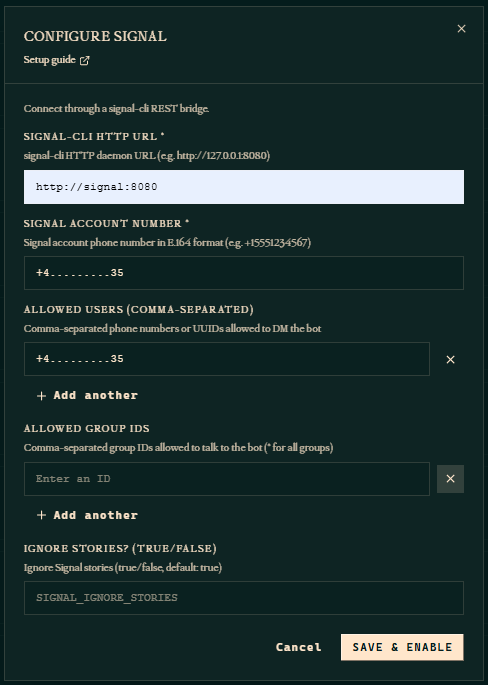
Save and enable the Signal channel.
Restart Hermes if required:
docker compose restart hermes
Because both services share the same Docker Compose network, Hermes can resolve signal using Docker’s internal DNS.
You do not need to publish Signal’s HTTP port on the Ubuntu host.
11. Test the Complete Integration
Now it’s time to verify the full communication path.
Open Signal on your phone and navigate to Note to Self.
Send:
Hello Hermes, are you online?
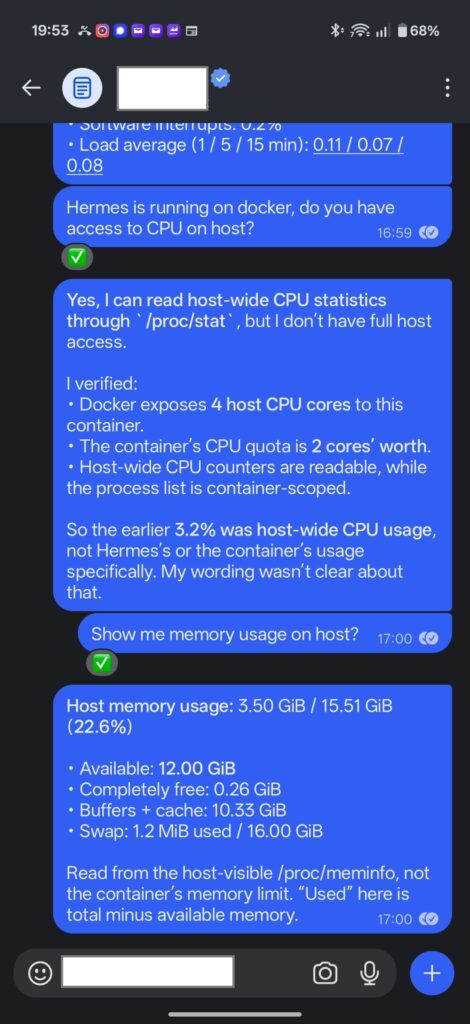
In my setup, Hermes successfully responded through Signal.
This confirmed the complete integration:
- Signal received the message.
signal-climade it available to Hermes.- Hermes processed the request using its configured AI provider.
- The response was sent back through Signal.
You can also inspect Hermes logs:
docker compose logs --tail=80 hermes
Or filter Signal-related messages:
docker compose logs --tail=80 hermes | grep -i signal
12. Troubleshooting Summary
Here are the most important problems I encountered.
| Problem | Cause | Solution |
|---|---|---|
| Dashboard refuses to start | Missing authentication provider | Configure dashboard Basic Auth |
| Dashboard authentication fails | Conflicting environment variables | Remove conflicting variables and recreate Hermes |
Signal shows unhealthy | Data directory permission errors | Correct volume ownership |
| Signal returns HTTP 404 | Incompatible REST API wrapper | Use native signal-cli HTTP daemon |
| Signal repeatedly restarts | UID/GID mismatch | Set directory owner to 101:101 |
| Hermes cannot reach Signal | Incorrect URL or daemon unavailable | Use http://signal:8080 and test /api/v1/check |
These checks helped isolate problems one layer at a time: Docker container status, filesystem permissions, HTTP connectivity, API compatibility, and finally Signal account linking.
13. Security Considerations
A self-hosted AI agent can potentially execute commands and access local resources. It is important to limit its permissions.
For this setup, I recommend:
- Keep the Signal HTTP API private to the Docker network.
- Require authentication for Hermes Dashboard.
- Restrict Signal’s Allowed Users list to trusted accounts.
- Protect persistent data directories and authentication credentials.
- Avoid granting unnecessary host filesystem access.
- Do not mount the Docker socket unless there is a specific, understood need.
- Review agent tool permissions before allowing shell execution or access to sensitive repositories.
- Back up persistent configuration securely.
- Keep the Docker images updated after testing new releases.
14. What’s Next?
Now that Hermes is accessible through Signal, there are several interesting possibilities.
As a software test automation engineer, I’m particularly interested in integrating Hermes with development and QA workflows.
For example, an AI agent could potentially:
- Execute Python and Pytest test suites.
- Analyze CI/CD failures.
- Summarize test results.
- Inspect application logs.
- Work with Git repositories.
- Generate reports and send summaries to Signal.
These capabilities require additional tool configuration and appropriate access controls; they are not automatically enabled by the Signal integration.
A possible next project is to let Hermes execute a selected Pytest suite and return a concise test execution summary directly to my phone.
Conclusion
Deploying Hermes Agent with Docker and integrating it with Signal provides a convenient way to access a self-hosted AI assistant.
The most challenging part of my setup was not Docker itself, but getting the correct Signal HTTP interface and filesystem permissions configured.
Once those issues were resolved, the integration worked as expected.
The result is a persistent AI agent running on Ubuntu, accessible through a web dashboard and directly from Signal Messenger.
This creates a foundation for more advanced automation, particularly in software development, testing, and infrastructure management.
Tested on Ubuntu with Docker Compose, Hermes Agent, and native signal-cli in November 2026.
Leave a Reply